Linux USB←→serial tooling
The MB2’s USB emulated serial device shows up in Linux when you connect the MB2 to a Linux USB port.
Connecting the MB2 board
If you connect the MB2 board to your computer you should see a new TTY device appear in
/dev.
$ sudo dmesg -T | tail | grep -i tty
[63712.446286] cdc_acm 1-1.7:1.1: ttyACM0: USB ACM device
This is the USB←→serial device. On Linux, it’s named tty (for “TeleTYpe”, believe it or not). It
should show up as ttyACM0, or maybe ttyUSB0. If other “ACM” devices are plugged in, the number
will be higher. (On Mac OS ls /dev/cu.usbmodem* will show the serial device.)
But what exactly is ttyACM0? It’s a file of course! Everything is a file in Unix:
$ ls -l /dev/ttyACM0
crw-rw----+ 1 root plugdev 166, 0 Jan 21 11:56 /dev/ttyACM0
Note that you will need to be either running as root (not advised) or a member of the group that
appears in the ls output (usually plugdev or dialout) to read and write this device. You can
then send out data by simply writing to this file:
$ echo 'Hello, world!' > /dev/ttyACM0
You should see the orange LED on the MB2, right next to the USB port, blink for a moment, whenever you enter this command. The bit rate and other serial parameters may not be set up right for the MB2 serial port, but the MB2 can tell that it is being sent serial.
minicom
We’ll use the program minicom to interact with the serial device using the keyboard. We will use
the default settings of modern minicom: 115200 bps, 8 data bits, one stop bit, no parity bits, no
flow control. (115200 bps happens to be a rate that will work with the MB2.)
$ minicom -D /dev/ttyACM0
This tells minicom to open the serial device at /dev/ttyACM0. A text-based user interface
(TUI) will pop out.
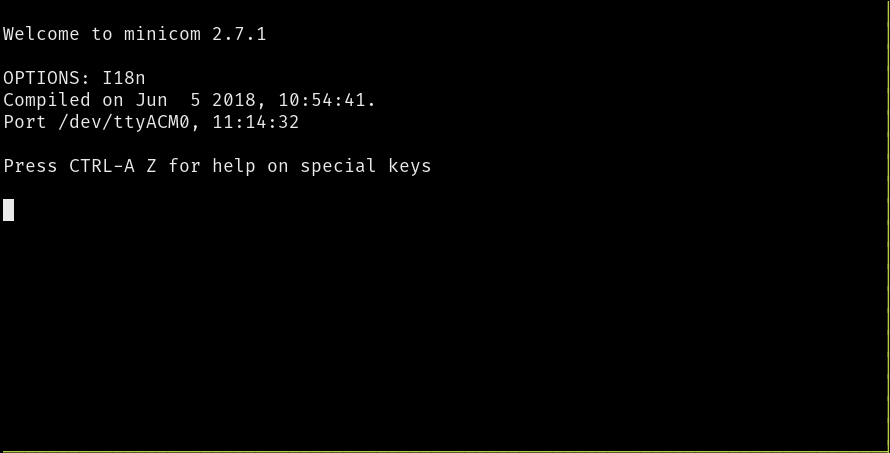
You can now send data using the keyboard! Go ahead and type something. Note that the text UI will not echo back what you type. If you pay attention to the yellow LED on top of the MB2 though, you will notice that it blinks whenever you type something.
minicom commands
minicom exposes commands via keyboard shortcuts. On Linux, the shortcuts start with Ctrl+A. (On
Mac, the shortcuts start with the Meta key.) Some useful commands below:
Ctrl+A+Z. Minicom Command SummaryCtrl+A+C. Clear the screenCtrl+A+X. Exit and resetCtrl+A+Q. Quit with no reset
NOTE Mac users: In the above commands, replace
Ctrl+AwithMeta.